Cashflow
Cashflow shows how money moves in and out during a month, a quarter or a year: what came in, what went out, what you set aside, and what is still free to spend.
Quick start
- Pick Month, Quarter or Year, and move between periods with the arrows.
- Read Net Cashflow: income minus expenses.
- Read Available and its Free figure: what is left once spending and money set aside are counted, and how much of it your budgets still need.
- Check Expenses to see how much of your spending was fixed, variable or outside any budget.
- Open View details for the full picture, and follow a block's arrow to its transactions when something looks off.
How the money splits
The formulas behind the cards:
Net cashflow = Income - Expenses
Available    = Income - Expenses - Saved - Invested
Free         = Available - Reserved
Period navigation
Choose a view at the top of the page:
- Month: one calendar month.
- Quarter: three months, from Q1 (January to March) to Q4.
- Year: a calendar year.
The arrows move to the previous or next period of the same kind. Every card compares the period with the one before it: the previous month, quarter or year.
The URL keeps the view and the period, so you can refresh or share the same view.
Summary cards
Net Cashflow
Income minus expenses, with the savings rate next to it: the share of income that was not spent.
Below it you see the income and expense totals it comes from, each compared with the previous period. Negative means you spent more than you earned.
Saved & Invested
How much of the net cashflow you set aside, and what share of it that was.
Saved and Invested are shown apart. When you set money aside, a pill next to each shows its share and a bar draws the split.
The figures come from transactions in savings and investment categories, so they only fill in once you use those category types.
Available
What is left of your income once expenses and the money you saved or invested are counted, and the share of income that is.
It is compared with the previous period. Below it, Income and Allocated (expenses plus what you contributed) show where it comes from.
Expenses
Your spending for the period, with its share of income, split into Fixed, Variable and General by the budgets that track it.
Each row has an arrow to its transactions. View details opens the full breakdown.
Available and Free
Available is what your income did not go to: not spent, not saved, not invested.
Available = Income - Expenses - Saved - Invested
Part of it may already be spoken for. If a budget still has money left this week or this month, you will most likely spend it before the period ends. That is the reserved amount, and what remains is Free:
Free = Available - Reserved
For example, a groceries budget of 200 with 120 spent so far reserves 80.
The Available card shows Free at the bottom, with the amount reserved in budgets, or "Nothing reserved in budgets" when there is none.
What counts as reserved
Reserved adds up what is left in each budget period that:
- overlaps the period you are looking at, and
- is in progress today.
A budget period that is over does not reserve anything: whatever it left unspent is already part of Available. One that has not started yet does not reserve anything either. A budget that went over adds nothing, rather than taking money from the others. Archived budgets and carried-over amounts are not counted.
Which budgets count depends on the view:
- Month: weekly, bi-weekly and monthly budgets.
- Quarter: weekly, bi-weekly, monthly and quarterly budgets.
- Year: yearly budgets only.
A quarterly or yearly budget's margin is not money held back from one month's income, and a monthly budget says little about a whole year, so each is kept to the view it fits. See budget periods and budgets on the Cashflow page.
When you look at a past or future period, there is usually nothing in progress in it, so nothing is reserved and Free equals Available. The exception is a weekly or bi-weekly budget period that crosses into today, such as one running from the last days of last month into this one.
Expenses: fixed, variable and general
The Expenses card splits your spending by the expense type of the budgets that track it:
- Fixed: spending tracked by a budget marked as a fixed expense. Rent, subscriptions, insurance: the same amount every period.
- Variable: spending tracked by a budget marked as a variable expense, and by no fixed one. Groceries, restaurants: spending you can adjust.
- General: spending no budget tracks.
A transaction counts as tracked when its category (or a parent category) or one of its labels is tracked by a budget that has a period in the view. A transaction tracked by both a fixed and a variable budget counts once, as fixed.
The catch-all budget does not count here: it tracks whatever nothing else does, so its spending stays in General.
New budgets are variable by default. If everything shows up as variable or general, set the expense type on your budgets.
The three parts always add up to the total. Unlike reserved, the split works just as well for a past period as for the current one.
Where your money goes
View details on the Expenses card opens a panel with the whole period:
- Tiles: Income, Allocated, Available and Free, with the amount reserved.
- Income bar: your income split into Fixed, Variable, General, Saved, Invested, Reserved and Free. If you allocated more than you earned, the panel says by how much.
- Blocks table: each block with its % of income, its amount, and the change against the previous period. Spending less is shown as good news; contributing less to savings or investments is not.
- Fixed budgets and Variable budgets: the budget periods in progress in this view, each with what you spent of what you allocated and what is left, and how much each group reserves.
A note at the bottom points you to the other views: in Month it reminds you that quarterly budgets are reserved in the Quarter view and yearly ones in the Year view, in Quarter that yearly budgets are reserved in the Year view, and in Year that weekly and monthly budgets are reserved in the Month view and quarterly ones in the Quarter view.
View a block's transactions
Every block on the Expenses card and in the blocks table has an arrow. It opens the transactions list filtered to that block (fixed, variable, general, saved or invested) and to the dates of the period you were looking at, so the list adds up to the figure you clicked.
The filter shows as a chip you can remove. See the cashflow block filter.
Trend chart
Cashflow Trend shows income, expenses and net cashflow month by month. In the Month view it covers the 12 months up to the selected month; in the Quarter and Year views, the months of the selected period.
Use it to spot patterns: a month with an unusual bill, income that changes with the seasons.
Money flow
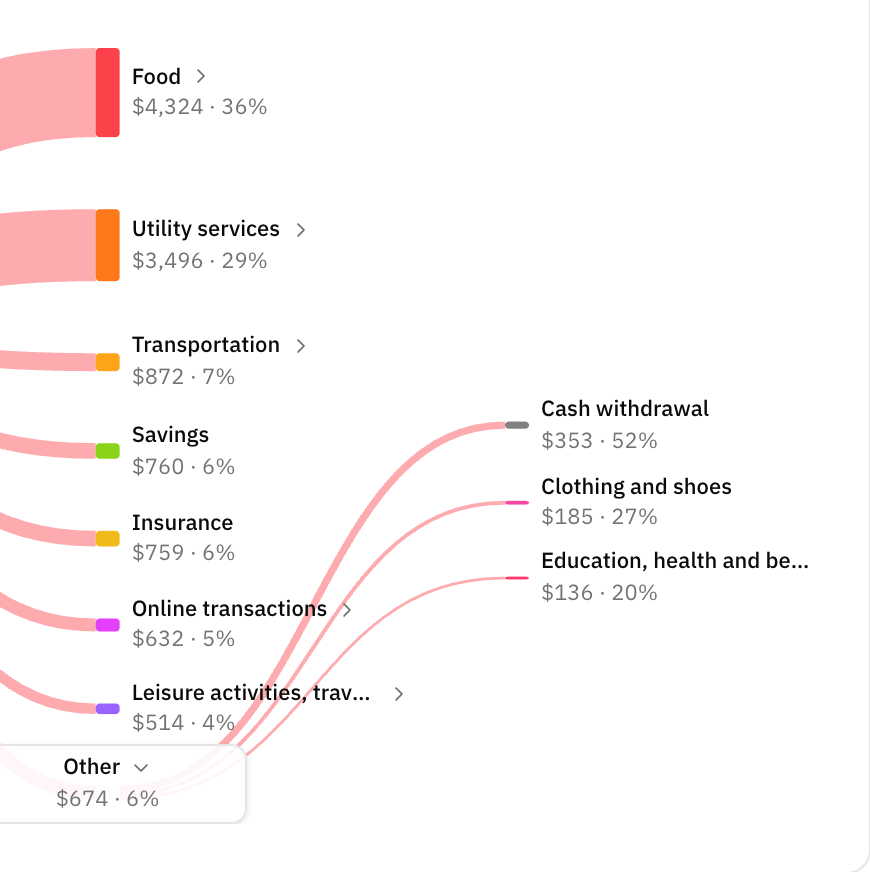
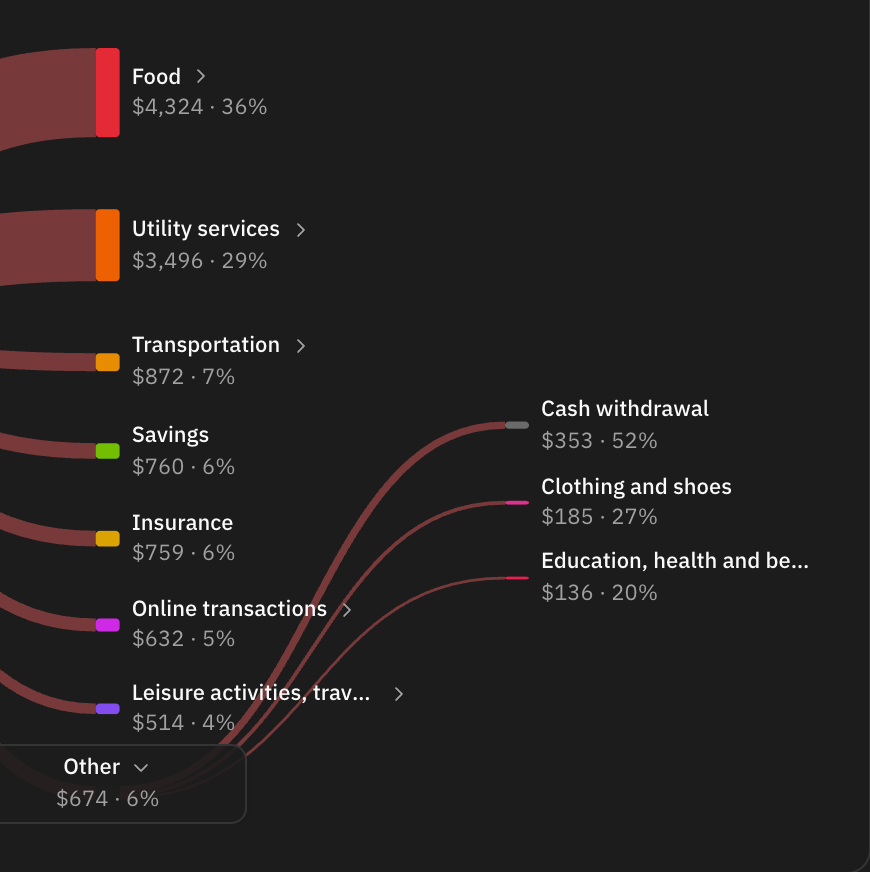
Money Flow draws the period as one diagram: income categories on the left, Available in the middle, and where the money went on the right, expense, savings and investment categories alike.
The width of each band is its amount. Under each category's amount you see its
share: an income category's share of total income, an expense category's share
of total spending. The centre node adds what share of your income was left over.
Shares are rounded to whole percents, so a side can add up to 99% or 101%, and a
share too small to round shows as <1%. In privacy mode the amounts are hidden
and the shares stay, since a share gives no amount away.
Click a category with subcategories to open them, or a category without them to see its transactions. Inside an open category, each subcategory's share is its share of that parent, not of the whole side: opening Food tells you how much of your food spending was the supermarket.
Other
When a side has more than five categories, the ones below 3% of that side are grouped under Other, so the diagram stays readable. The three largest are always shown on their own, and Other only appears when it would hold at least two categories. Other opens like any parent: click it, or focus it and press Enter, and it splits into the categories it was holding. The income side and the expense side each have their own Other, and they open separately.
Refunds and offsets
A refund counts against the category it belongs to. A 60 restaurant bill in May and a 40 refund in June leave the restaurant category at -40 in June, rather than dropping it from the month.
When a whole category nets to the opposite side, it moves to that side of the diagram and says why in its name: (refund) for an expense category that brought money in, (reversal) for an income category that took money out, and (withdrawal) for money taken back out of savings or investments.
Inside an open category, a subcategory that went the other way is shown as an offset: a line with a negative amount and a negative share, under the subcategories, with a dashed marker instead of a band. A Bank category with fees of 1,238, charges of 284 and interest received of 28 reads 1,494; opened, it shows Fees 83%, Charges 19% and Interest -2%, which add back up to the parent.
Income and expense breakdowns
Two lists: Income Sources (where your money comes from) and Expense Categories (where your money goes), each category with its share of the total and its change against the previous period.
Open a category with subcategories to see them, or click a category to see its transactions. Uncategorized transactions appear as their own row, which is usually the first thing to fix when a total looks wrong.
A category whose refunds outweighed its spending in the period stays on its own list with a negative amount, and no bar or share. That way the rows still add up to the total above them.
Monthly savings
In the Month view, a card shows how the month's net cashflow went towards your monthly savings goals, against the sum of their targets.
Transfers in cashflow
Transfers are special.
Most transfers between your own accounts should not count as income or spending. If a transfer should appear in cashflow, set its cashflow direction on the category.
Options:
- Do not show.
- Show as cash inflow.
- Show as cash outflow.
Money you set aside
Savings and investment categories are counted as money going out of your day-to-day finances, the same as an expense, but they are kept separate from spending: they are what fills the Saved & Invested card, and they are taken out of Available.
Use them for a transfer to an emergency fund or a deposit at a broker, and use a plain transfer category for movement that is not either of those.
When cashflow looks wrong
Check these first:
- Are transactions categorized correctly?
- Are transfers using the right cashflow direction?
- Are dates in the expected period?
- Are imported amounts positive and negative the right way around?
- Are there uncategorized transactions?
- Do your budgets have the right expense type, fixed or variable?
- Are you in the view that matches your budgets: Month or Quarter for weekly and monthly budgets, Quarter for quarterly ones, Year for yearly ones?
FAQ
Why is the savings rate negative?
Expenses were higher than income for the selected period.
Why is Available lower than Net Cashflow?
Available also takes out what you saved and invested. Net Cashflow only takes out expenses.
Why is everything in General?
General is spending no budget tracks. Create budgets for your regular spending and set each one's expense type to fixed or variable. Spending tracked by the catch-all budget always stays in General.
Why is reserved 0?
Reserved only counts budget periods in progress today. A past period usually has none, so nothing is reserved and Free equals Available. In the current period, it is 0 when your budgets for this view have nothing left or you have no budgets of that periodicity.
Why doesn't my yearly budget appear in the month's reserved?
The Month view only reserves weekly, bi-weekly and monthly budgets, and the Quarter view adds quarterly ones. Switch to the Year view to see what your yearly budgets reserve, or to the Quarter view for your quarterly ones.
Why does a yearly budget still count in a month's fixed or variable expenses?
The expense split follows every budget with a period in the view, whatever its periodicity: a transaction tracked by a yearly or quarterly fixed budget is a fixed expense in any month. Only reserved is limited by the view.
Why does a category show a negative amount?
More money came back to it than left in the period, usually because of a refund for something bought in an earlier period. Refunds count against their own category, so the totals match what you actually spent. See Refunds and offsets.
Why are transfers missing?
Transfer categories are usually hidden from cashflow. Change cashflow direction if you want them shown.
Why does the current period look incomplete?
The period may not be finished yet. Income or bills may still be missing.