Transactions
Transactions are the individual money movements in your accounts. They power categories, cashflow, budgets, and automation rules.
Quick start
- Add transactions by hand, import them from a file, or sync them from a connected account.
- Check dates, descriptions, and amounts.
- Add categories and labels.
- Use filters to find groups of transactions.
- Use bulk actions when many transactions need the same update.
Transaction flow
What a transaction contains
Date
The day the money moved.
Dates control which month the transaction appears in.
You can move any transaction's date, including one that came from your bank.
Description
The text from your bank or the text you entered manually.
Descriptions are useful for search and automation rules.
Amount
The money value.
Positive amounts usually mean money coming in. Negative amounts usually mean money going out.
Category
The meaning of the transaction.
Categories decide where the transaction appears in reports.
Labels
Extra tags you can use for filtering and budgets.
A transaction can have more than one label.
Creditor and debtor name
Who received the money, and who sent it.
Banks supply these separately from the description on connected accounts. They are often cleaner than the description, which makes them good for both filters and automation rules.
Notes
Private context for yourself.
Use notes when the bank description is not enough.
Filtering and search
Use filters when the list is too large.
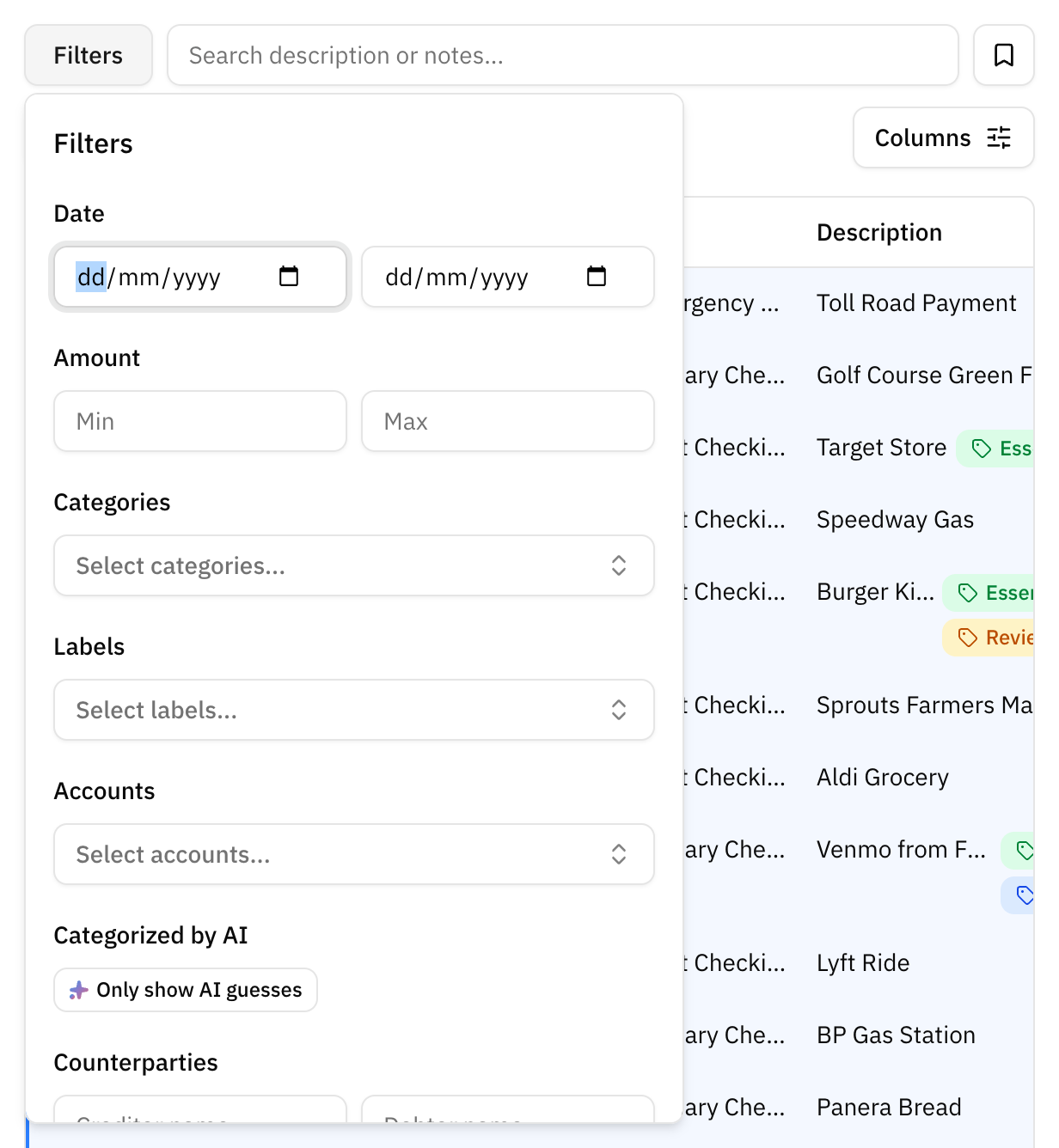
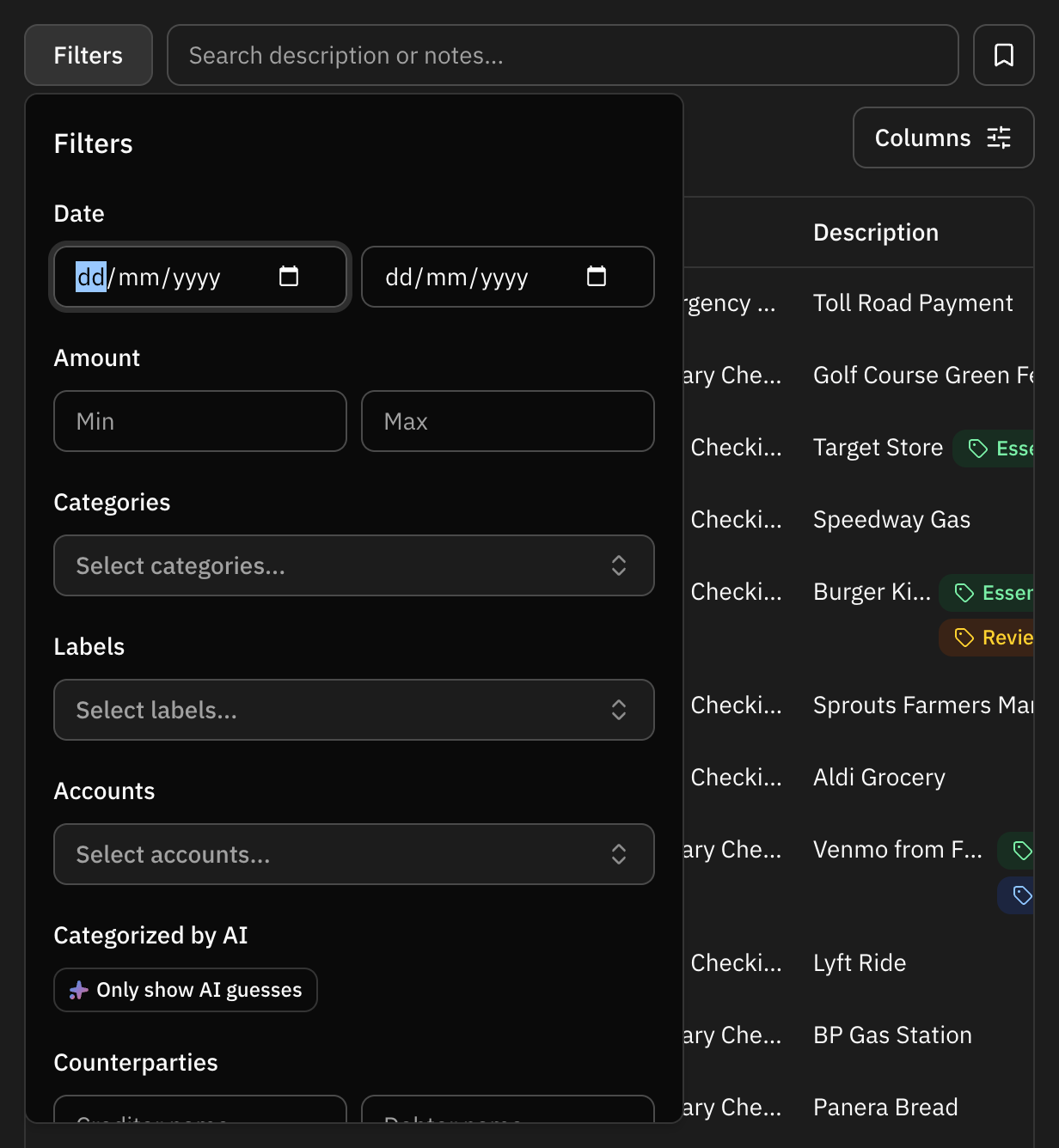
You can filter by:
- Date range, or a whole month, quarter or year in one click
- Amount: how big an expense or an income was
- Category
- Account
- Label
- Creditor or debtor name
- How the category was set: by you, by a rule, by Whisper Money, or by your bank
- Search text
A good search often starts with the merchant name or a word from the bank description.
In the Filters menu, next to the date, the Month, Quarter and Year buttons set the range to the whole calendar month, quarter or year that contains the start date, or today if there is none. The button that matches the current range shows as pressed.
Searching the category filter for a parent category lists its subcategories too, so you can tick the parent or just the one you mean.
Amount
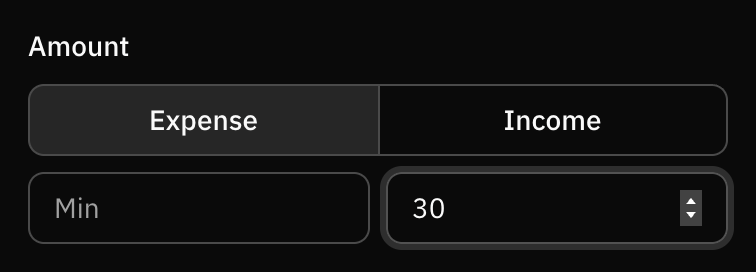
The amount filter looks at how big a transaction is. Pick Expense or Income first, then type Min and Max as plain amounts, without a sign. It starts on Expense.
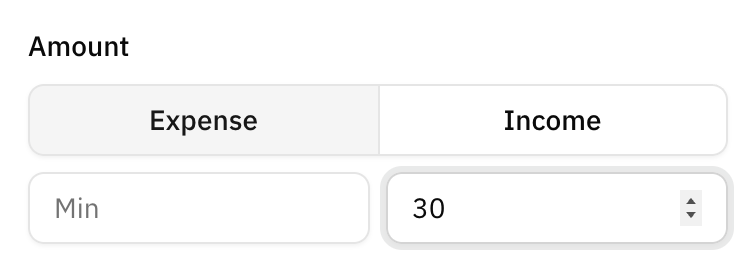
- Expense, Max 30: every expense of 30 or less.
- Expense, Min 100: every expense of 100 or more.
- Income, Min 1000 and Max 3000: income between 1,000 and 3,000.
An older saved filter or link might cover both expenses and income at once. It then shows with neither side chosen and a note saying so. Picking a side turns its limits into plain amounts for that side.
Cashflow block
The Cashflow page splits your money into blocks: fixed, variable and general expenses, and what you saved and invested. Every block there, in the Expenses card and in the "Where your money goes" panel, has an arrow that opens this list showing exactly the transactions behind that figure, for the same dates.
The list shows the block as a chip above the transactions, such as Block: Fixed expense. The blocks are:
- Fixed expense: what your fixed budgets track.
- Variable expense: what your variable budgets track, and no fixed one does.
- General expense: spending no budget tracks.
- Saved: money set aside with a savings category.
- Invested: money set aside with an investment category.
How expenses fall into each block is explained in Budgets.
A block only makes sense over a period, so it needs both a start and an end date. Change the dates, or use the Month, Quarter and Year buttons, to see the same block over another period. Clearing either date drops the block. To go back to the full list, remove the chip with its cross. You can combine the block with any other filter.
The block filter is not in the filter menu. You reach it from the Cashflow page.
Saved filters
A filter combination you keep coming back to can be saved and given a name. It then sits alongside the transaction list, one click away, instead of being rebuilt every time.
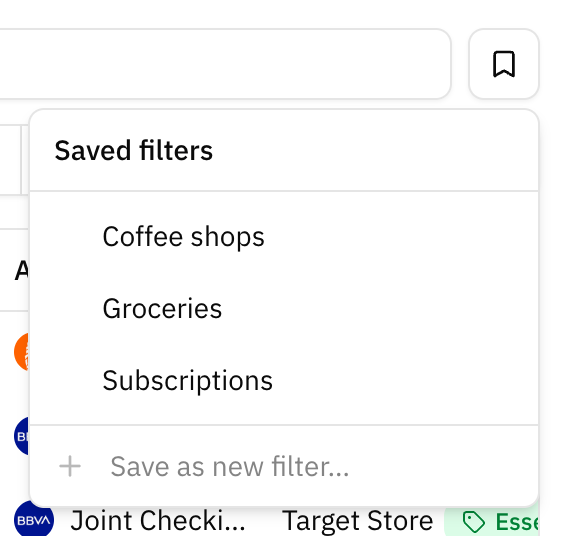
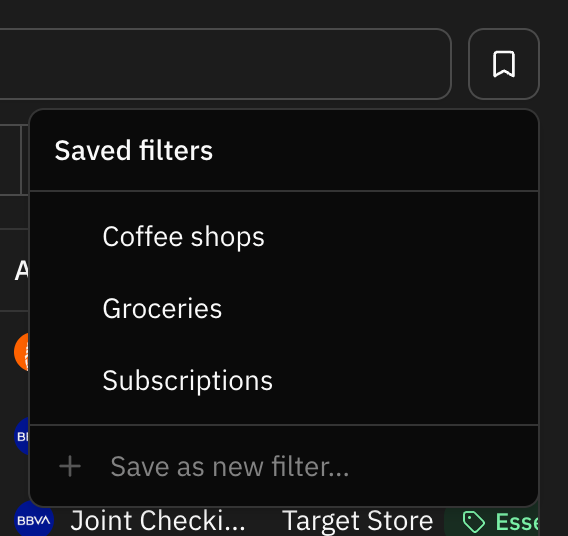
Saved filters are useful for the reviews you repeat: uncategorized transactions, one account's month, a merchant you are keeping an eye on.
Bulk actions
Bulk actions help when many transactions need the same change. Selecting rows brings up a bar with everything that can be applied to all of them at once.


Good uses:
- Assign one category to several transactions.
- Add the same label to a group.
- Update notes for matching transactions.
- Re-evaluate automation rules for selected transactions.
Before bulk editing, double-check the filtered list. Bulk actions can update many rows at once.
Uncategorized transactions
Uncategorized transactions make reports less useful.
Try this approach:
- Filter for uncategorized transactions.
- Categorize obvious merchants first.
- Create automation rules for repeated merchants.
- Leave unclear items for later instead of guessing.
Re-evaluating automation rules
If you create or change rules after transactions already exist, older transactions may not update automatically.
Use re-evaluation when you want rules to run again on existing transactions.
Run it on all your transactions, whatever filter is on, with Update categories automatically in the More actions menu above the list. Run it on just the rows you selected with Re-evaluate rules in the bulk actions bar.
Use it after:
- Creating a new rule.
- Fixing a rule condition.
- Importing many transactions.
- Cleaning up old uncategorized items.
It can take a moment. Small batches finish while you watch, with a message counting the transactions it changed. When it has to wait its turn, a Re-evaluation queued message says it will finish in the background: there is nothing to retry, reload the page later to see the result.
FAQ
Why does a transaction show in the wrong month?
Check the transaction date. Reports use that date.
Can I move the date of a transaction my bank sent?
Yes. Open the transaction and change the date. This is what you want when your payroll lands on the 27th but belongs to next month's budget.
Moving the date changes which month, budget and cashflow period the transaction counts towards. It changes nothing else: the amount and the account stay as your bank reported them, and the dialog keeps showing the original date underneath so you can always see where the transaction started.
Your bank's own timeline is kept too, so moving a date never makes the next sync skip transactions or re-import the same one twice.
Parts of a split transaction are the exception. Their date stays locked, so the parts keep adding up to the transaction they came from.
Can one transaction have multiple categories?
No. A transaction has one category. Use labels when you need extra tags.
What is the difference between categories and labels?
Categories define the main meaning. Labels add flexible tags for filtering and budgets.