Create a transaction
Add a transaction by hand when it did not arrive from a bank file or a connected account: cash, a repayment between friends, or something the bank never recorded.
Quick start
- Press + Transaction above your transactions list.
- Choose Expense or Income and type the amount.
- Type a description.
- Check the account, date and category chips under it.
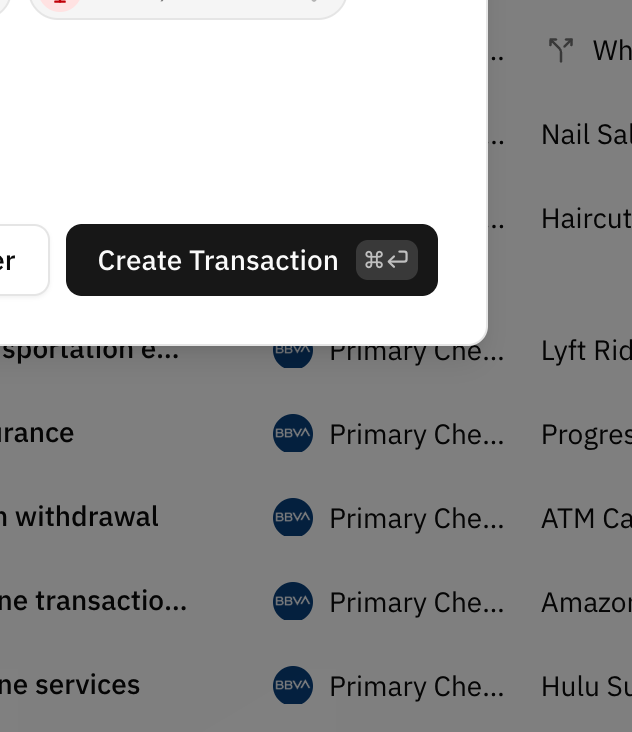
- Press Create Transaction, or ⌘ Enter on a Mac and Ctrl Enter elsewhere.
Where the button is
- Transactions page: + Transaction is the first button in the bar right above the list, before Analysis and Categorize. On a very narrow phone it shrinks to a +.
- Account page: the same button sits above that account's transactions, and the dialog opens with that account already chosen.
- Page header: if you add a good share of your transactions by hand, + Transaction also appears in the header of every page, next to the import button. It shows when at least a quarter of the transactions you added in the last 30 days were typed in by you. It can take up to an hour to appear or go away after that changes.
When you have no account that can hold transactions, such as when all you have is an investment account, the button is greyed out and says you need an account first.
Quick add
The dialog opens short: the amount, the description, and a row of chips with sensible defaults. For most transactions that is all there is to check.
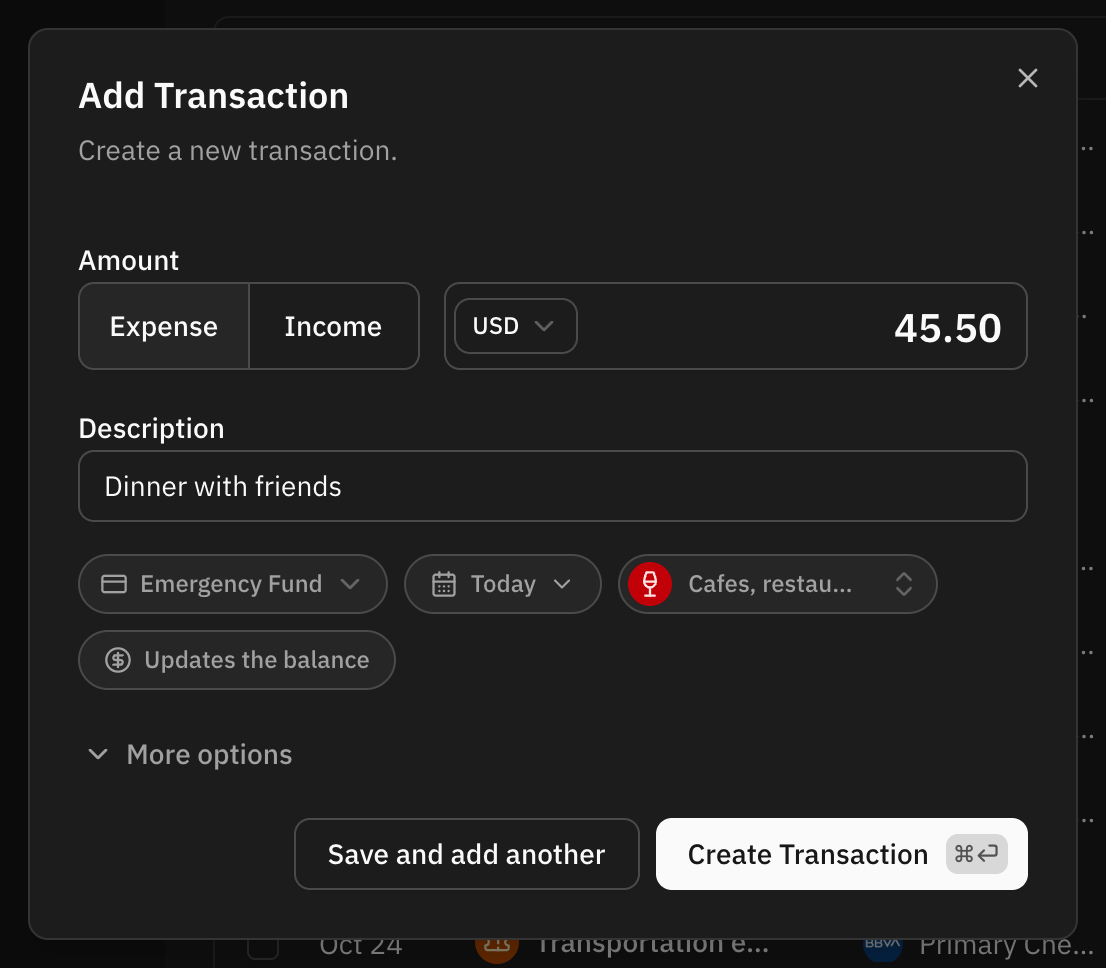
- Account: the account you last added a transaction to by hand. On an account page it is that account. Click it to pick another one.
- Date: Today. Click it to show the date field and pick another day.
- Category: Uncategorized, on purpose. Click it to search and pick one. Left alone, your automation rules can still fill it in when you save.
- Balance: Updates the balance or Leaves the balance alone. Click it to switch. See Updating the balance at the same time.
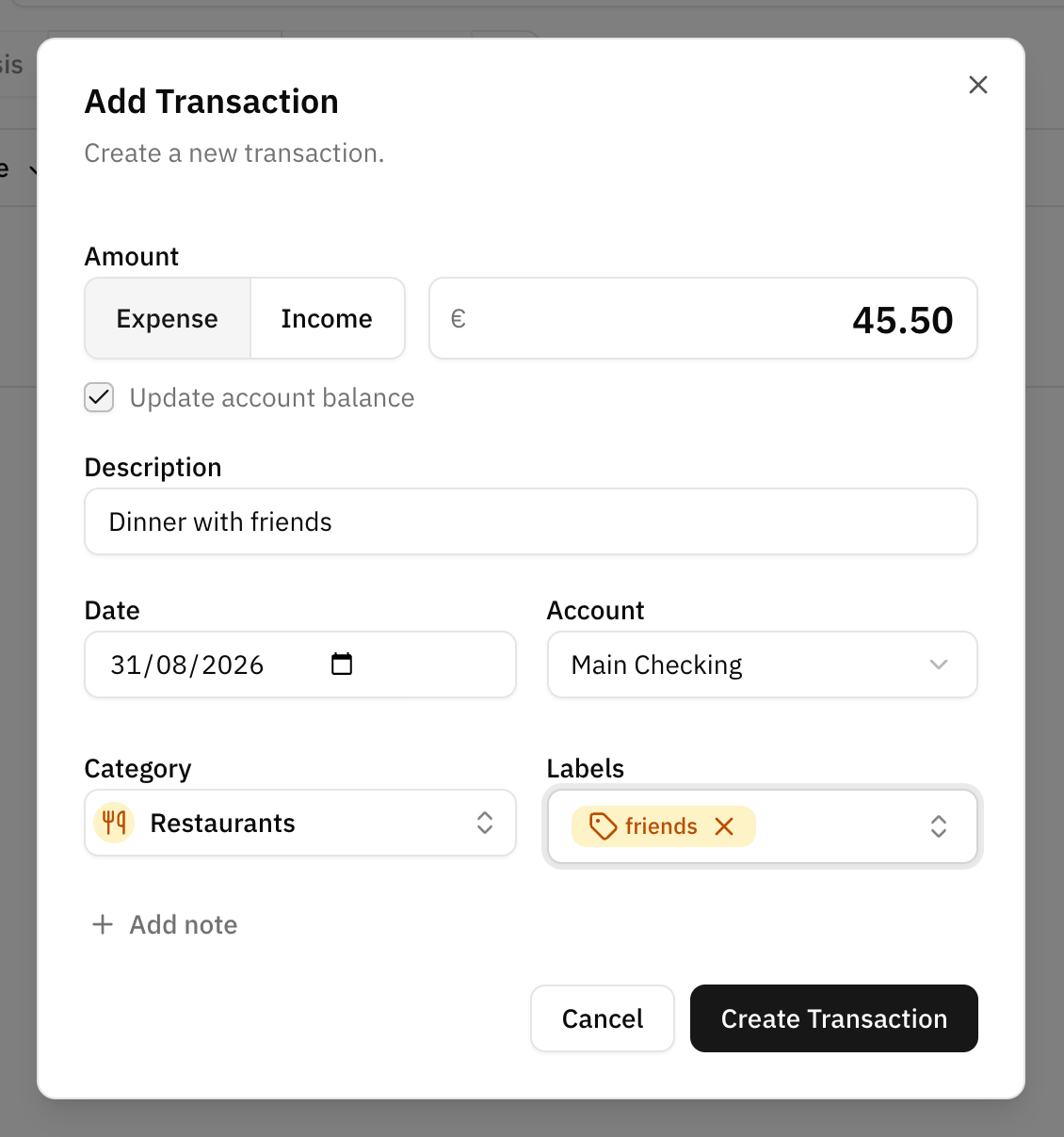
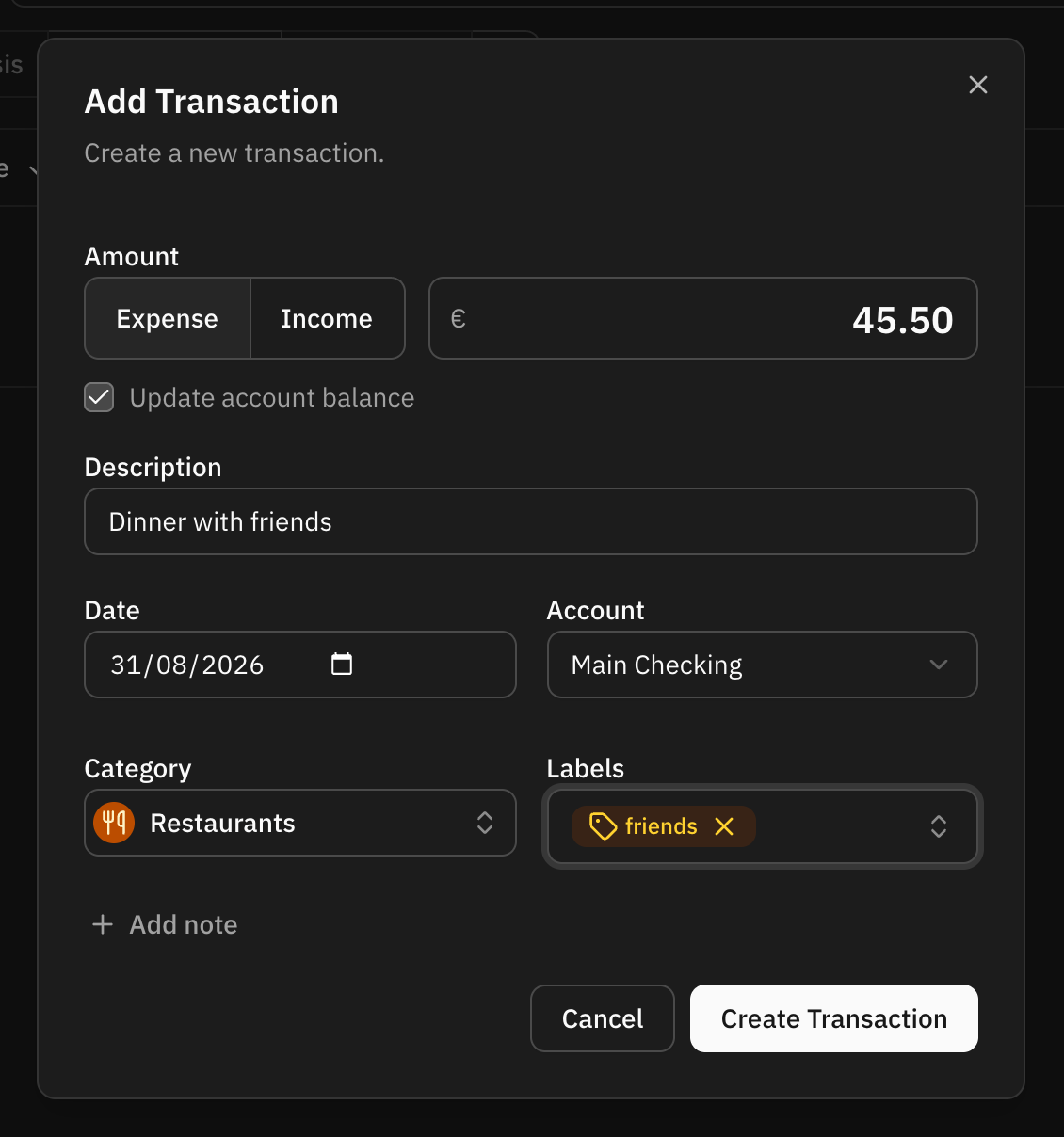
More options opens the whole form: the date and account fields, the category, labels, notes and the balance checkbox. Fewer options folds it back.
What to fill in
Four fields are required: amount, description, date and account.
- Amount is typed without a sign: the Expense / Income toggle next to it decides whether the money goes out or comes in.
- Description is what you will recognise later, and what automation rules read.
- Date decides which month the transaction is reported in. "Today" is today in your device's time zone.
- Account decides which balance the transaction belongs to.
Category and labels are optional and can be added at any time afterwards. When you search the category picker, a parent category comes with all its subcategories, so typing "Food" also lists Groceries, Food delivery and the rest of what sits under it. Notes sit behind an Add note button until you need them.
Creditor and debtor names are not part of this dialog. They only exist on transactions a bank supplied them for.
Paying in another currency
The currency picker inside the amount field starts on the account's currency. Change it when you paid in something else, like a hotel in dollars charged to a euro account. Type the amount you actually paid, in that currency.
When the two currencies differ, the dialog shows what the amount comes to in the account's currency, using the exchange rate on the transaction's date. Choosing another account puts the currency back to that account's.
If there is no exchange rate for that day, the dialog shows only the amount you typed, and the account's balance is not moved even with the balance option on. Update it by hand if you need to.
Adding several in a row
Save and add another saves the transaction and keeps the dialog open for the next one. The account, the date, Expense or Income, the category and the labels stay as they were. The amount, the description and the notes are cleared, and the cursor goes back to the amount.
It is the quickest way to enter a stack of receipts in one go.
Keyboard shortcuts
| Shortcut | What it does |
|---|---|
| ⌘ Enter on a Mac, Ctrl Enter elsewhere | Saves: Create Transaction when adding, Save Changes when editing. It works while you are still typing in a field. |
| N | Opens the notes and puts the cursor in them. It does nothing while you are typing in a field, or before More options is open when adding. |
| Esc | Closes the dialog without saving. |
On a screen wider than a phone, the buttons show their shortcut next to their name.
Updating the balance at the same time
On an account you keep by hand, the dialog offers to update the account's balance: the Updates the balance chip in the short form, the Update account balance checkbox under More options. Leave it on and the account's balance moves by the amount of the transaction, so the balance and the transaction stay in step. Whether you leave it on or off is remembered for next time.
On an account connected to a bank the option is not offered: the bank is the source of that balance, and the next sync would overwrite anything entered here. A credit card does not offer it either, since it has no balance of its own to move.
Automation rules still run
A transaction created by hand is matched against your automation rules like any other. A rule only fills what you left empty: choose a category yourself and the rule will not replace it.
When a rule chose the category while the short form was hiding it, the message after saving says which category it picked and offers to undo the save. Otherwise, a matching rule is named in the message.
The exception is a duplicated transaction, which keeps what the original had.
Editing a transaction
Click a transaction in the list to open the same dialog with what it holds. Save Changes saves it, and the bin button next to it deletes it after asking you to confirm. There is no Cancel button: the cross, Esc or clicking outside close it without saving.
A transaction you created yourself can be changed entirely. One that came from your bank or from a file shows its bank details read-only, and keeps its category, labels, notes and date editable. See Can I move the date of a transaction my bank sent?.
FAQ
Why is the amount saved as a negative number?
Because money going out is a negative amount everywhere in Whisper Money. Reports, budgets and cashflow all rely on the sign. You never type it yourself: the Expense / Income toggle in the dialog sets it for you.
Can I create a transaction in a different currency?
Yes. Pick the currency in the amount field. The transaction keeps the amount in that currency, and totals and the account's balance use it converted at the rate of the transaction's date.
Which day does a transaction I add late at night get?
Today's. Dates are calendar days in your device's time zone, so a transaction added at 23:30 is dated today, not tomorrow, and it shows on that same day wherever you look at it.