Categories
Categories explain what each transaction means. Pick the right category and your reports become easier to trust.
Quick start
- Decide whether the transaction is income, expense, transfer, savings, or investment.
- Use transfer categories for money moving between your own accounts.
- Review uncategorized transactions often.
- Create automation rules for repeated merchants.
- Add subcategories when one category needs more detail, such as Groceries and Restaurants under Food.
Not sure what to pick? Start with the type. You can rename the category later.
Category map
Examples:
- Groceries → Expense → spending reports and budgets.
- Salary → Income → income and cashflow reports.
- Checking to savings → Transfer → avoids double-counting.
Category types
Each category has one type.
Expense
Use this for money leaving your finances.
Examples:
- Groceries
- Rent
- Transport
- Subscriptions
- Taxes
Income
Use this for money coming into your finances.
Examples:
- Salary
- Freelance income
- Refunds
- Dividends
- Interest
Transfer
Use this when money moves between accounts you own.
Examples:
- Checking to savings
- Bank account to credit card
- Bank account to investment account
Savings
Use this when money leaves your day-to-day finances to be kept.
Examples:
- Monthly transfer to an emergency fund
- Money set aside for a goal
Savings categories are not spending. They feed the Saved & Invested card on the Cashflow page, and they come out of what is left Available there.
Investment
Use this when money leaves your day-to-day finances to be invested.
Examples:
- Broker deposit
- Pension contribution
- Index fund purchase
Like savings, investments are counted as money set aside rather than as spending. The Saved & Invested card shows how your set-aside money splits between the two.
Subcategories
Categories can nest up to three levels deep: a category, its subcategories, and theirs. Food can hold Groceries and Restaurants, and Restaurants can hold Lunch at work.
Categories live in Settings → Categories. There are two ways to create a subcategory:
- From the category row. Open the row's ... menu, or right-click it, and choose Create subcategory. The dialog opens with that row already picked as the parent and its colour filled in. The colour can be changed; the type cannot.
- From Create Category. Pick a Parent category in the dialog.
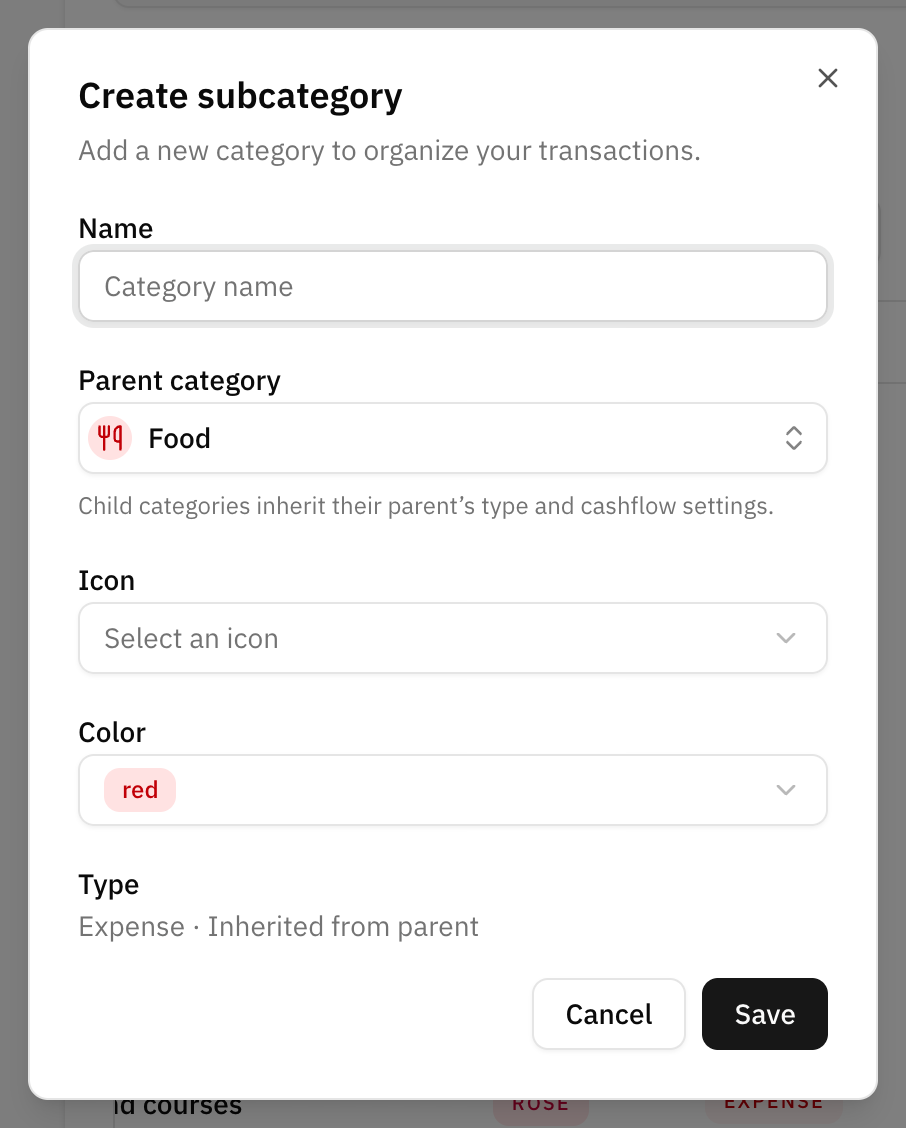
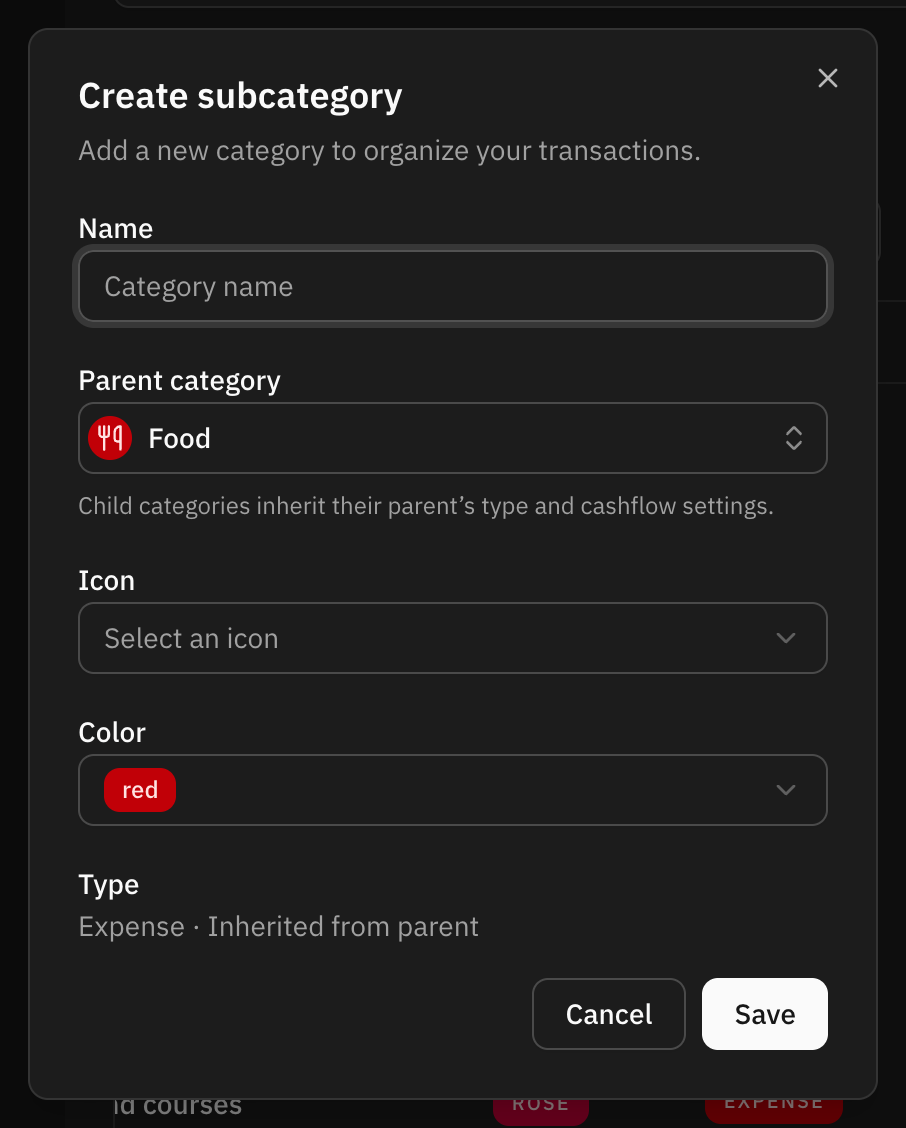
A subcategory always has its parent's type and cashflow settings; the dialog shows the type as "Inherited from parent". Categories on the third level do not offer Create subcategory, because they cannot hold any.
What the nesting changes:
- Reports roll up. A parent's total in cashflow includes its subcategories, and you can open it to see them one by one.
- Budgets follow the tree. A budget that tracks a parent also tracks every subcategory under it.
- Search finds the family. Typing a parent's name in any category picker also lists its subcategories, so you can pick Groceries by searching "Food".
Transfers and cashflow direction
Transfer categories can be shown or hidden in cashflow.
Options:
- Do not show: hide the transfer from cashflow.
- Show as cash inflow: show the transfer as money coming in.
- Show as cash outflow: show the transfer as money going out.
For most account-to-account movement, Do not show is the safest choice.
The direction is yours to pick only on transfer categories. Savings and investment categories always count as money going out, and income and expense categories are counted by their type rather than by a direction.
Uncategorized transactions
Imported or synced transactions may start without a category.
Try this routine:
- Open uncategorized transactions.
- Assign the obvious ones first.
- Leave confusing ones for later if needed.
- Create automation rules for repeated merchants or descriptions.
When the month in progress has transactions without a category, Whisper Money reminds you once per session with a prompt in the corner of the screen. Categorize opens that month's uncategorized transactions; Not now hides the prompt for three days, on every device you use.
Who set the category
Every categorized transaction records how it got its category:
- You, by picking one.
- An automation rule that matched it.
- Whisper Money, when you have turned on AI categorization.
- Your bank, when the connection supplied one.
The transaction filters can narrow the list by any of these, which is the fastest way to review what was assigned automatically before you trust a month's reports.
AI categorization
Whisper Money can suggest categories for transactions you have not categorized yet. It is off until you turn it on, because it means sending the transaction description to an AI provider.
What to know:
- You choose whether to enable it, and you can turn it off again at any time.
- It only fills categories that are empty. It never overwrites one you picked.
- Anything it sets is marked as set by Whisper Money, so you can find and check it later.
- Correcting one of its categories can be turned into an automation rule, so the same merchant is handled without AI next time.
You can also start a rule from any transaction: its row menu has Automatize categorization, which drafts a rule from that transaction's description and category. See Automation rules.
Changing a category
Changing a transaction category updates reports that include that transaction.
This can affect:
- Spending totals
- Budget progress
- Income totals
- Cashflow
Changing the category itself, such as its name or type, affects all transactions using that category.
FAQ
What if I choose the wrong category?
You can change it later. Reports update after the transaction is recategorized.
Should credit card payments be expenses?
Usually no. If you already track the card purchases, the payment is money moving between your own accounts. Use a transfer category.
How many categories should I create?
Start small. Too many categories make reports harder to read. Add more only when you need more detail.
Can a subcategory have a different type from its parent?
No. A subcategory takes its parent's type. To track something as a different type, create it as a category of its own.
Good category habits
- Keep names short and clear.
- Avoid duplicate categories for the same kind of spending.
- Use transfer categories for movement between your own accounts.
- Review uncategorized transactions before trusting monthly reports.
- Automate repeated merchants and descriptions.